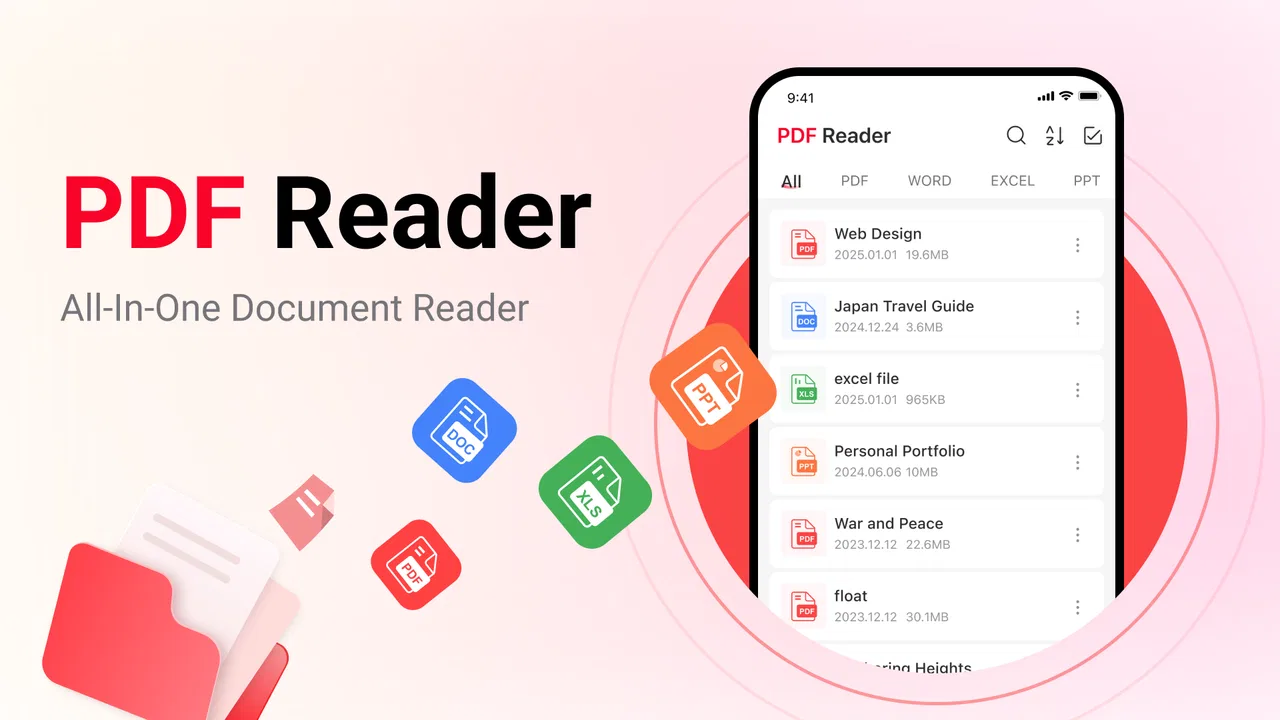
PDF Reader – Read & Manage
- 4.4
- Rating
- 1.00M
- Installs
- Free
- Price
 Analysis by App-foxy
I spent time with PDF Reader – Read & Manage as a practical tool for opening documents and turning images into PDF files, and my overall impression is straightforward: it focuses on a small, useful job rather than trying to become a complete office suite. That simplicity is its main appeal. If you regularly receive PDFs, save scanned notes, or need to combine a phone image with a document-based workflow, the app is easy to understand from the start.
It is a free tools app from theblue llc, rated for Everyone. The current release is version 1.2.6, and it runs on devices using iOS 11 or later. Its public reception is encouraging, with an average of 4.5 from around 4.3 thousand ratings and more than a million installs. Those figures suggest that it has found a broad audience, although popularity alone does not make it the right reader for every type of document work.
What the app does well in everyday document work
The central experience is uncomplicated: open a PDF when you need to read it, then use an image-to-PDF workflow when a picture needs to become a more usable document. That combination makes sense on a phone because many real documents begin as photos. A receipt, handwritten reminder, whiteboard snapshot, or signed page often arrives in the camera roll rather than as a finished file.
You May Also Like

 Blood Strike: 2.5 Anniversary
Blood Strike’s Loadouts Turn Every Drop Into a Tactical Gamble
A close look at Blood Strike’s custom loadouts: how fast access to signature weapons reshapes its battle royale rhythm, rewards preparation, and narrows the gap between fights.

 Pandora - Music & Podcasts
Pandora’s Music Is Easy to Start, but Harder to Recover
Pandora’s strength is its low-effort path from a seed to a station. Its weak spot is how much confidence it asks you to place in connection, setup, and quiet recovery.

 8 Ball Pool
 Is Built on Rivalries, Rematches, and Routine
A close look at the rivalries, rematches, shared routines, and unanswered safety questions that turn a quick pool match into a persistent mobile community.

 Samsung Music
’s Quiet Strength Is Playing What You Already Own
Its reach comes less from spectacle than from dependable access to a personal library. That simplicity is both the app’s strongest retention engine and its ceiling.

 AccuWeather: Weather Radar
AccuWeather Review: A Quick, Clear Forecast for Everyday Decisions
For everyday plans, the best forecast is the one you can understand quickly. AccuWeather makes rain timing, radar, and local conditions easy to act on, with a few trade-offs.

 Hill Climb Racing
Why Hill Climb Racing Still Turns Crashes Into One More Run
A tiny car, a bumpy hill and one more upgrade: Hill Climb Racing keeps resurfacing because its simple chaos makes every near-miss feel personal.
More From Our News Desk



I like this approach because it avoids switching between a separate viewer and a separate conversion utility for a simple task. When I think of this app, I do not think of heavy editing or advanced publishing. I think of it as a convenient middle step between “this is an image on my phone” and “this needs to be shared or stored as a PDF.”
A realistic example is a school or workday situation. Imagine photographing a completed form before leaving an office, then needing a PDF version later that evening. A dedicated PDF reader would handle the finished file, but it would not necessarily help with the original photo. Here, the same tool is aimed at both parts of that small workflow. That can save time when the goal is simply to create a readable document and move on.
The app also suits people who download PDFs from messages or websites and want a focused place to open them. A lightweight reader can be preferable to installing a large productivity package when all you need is document access. In that sense, the app’s value comes from reducing friction, not from offering a long list of professional controls.
How I would use the image conversion workflow
The most useful habit is to prepare the image before converting it. A photo taken at an angle, under weak lighting, or with a busy background will still look imperfect after it becomes a PDF. I would crop the picture first, check that all corners of the page are visible, and make sure small writing is legible at normal zoom. The conversion step cannot rescue a badly framed original.
For multi-page material, I would keep the pages together in a dedicated album or recent-image group before starting. That makes it easier to select the intended pictures and reduces the chance of mixing a document with unrelated camera shots. This is a small organizational step, but it matters more on a phone than people expect, especially when several pages look similar.
Another practical tip is to check the resulting PDF before sending it. Open every page, look for missing edges, and confirm that the order makes sense. Image conversion is most valuable when it creates a dependable file, not merely when it finishes quickly. A few seconds of checking can prevent an incomplete attachment from reaching a teacher, colleague, landlord, or customer.
There is also a useful distinction between archiving and sharing. For personal reference, a casual photo converted to PDF may be perfectly adequate. For an official submission, I would take more care with lighting, alignment, and page order. The app can support that workflow, but the quality of the source images remains the user’s responsibility.
Reading PDFs without turning the phone into an office
For ordinary reading, a focused PDF tool can feel less distracting than a broad document platform. If I only need to inspect a timetable, read instructions, review a short report, or check a downloaded form, I would rather start with a direct viewer than navigate through a collection of unrelated creation tools.
That said, reading needs vary. Someone who mainly opens static PDFs may appreciate the narrow purpose. Someone who marks up contracts, fills interactive forms, signs documents, extracts text, or collaborates with other people will probably judge the app by capabilities beyond basic viewing and conversion. I would not choose it as my only document solution until those more demanding needs had been tested on the specific files I use.
This is where the app’s identity matters. It is best understood as a reader and image converter, not as a replacement for a full desktop document workflow. That is not a criticism by itself. A smaller tool can be better when the task is small. The mistake would be expecting a focused utility to behave like a complete office environment.
What free access means for its value
The app is free, so the initial decision is simple: there is no purchase price standing between you and trying the basic experience. That makes it easy to evaluate with your own PDFs and images instead of deciding from a description alone. For occasional use, free access is especially attractive because you are not paying for a tool that may sit unused for weeks.
I would still separate “free to use” from “suitable for every professional task.” The absence of a price makes experimentation low-risk, but it does not automatically guarantee that the app will replace paid software, a computer scanner, or a business document system. The value depends on whether its focused functions match your routine.
For a student who occasionally turns photographed notes into PDFs, free access may be enough. For a freelancer who depends on searchable scans, precise annotations, or repeatable client delivery, the more important question is capability rather than cost. In that situation, a paid specialist may offer better value if it saves time and supports the required workflow, even though this app is free.
I also appreciate that the cost question can be answered plainly here: you can start without paying. That is different from claiming that every advanced need is covered at no cost. I would install it for a quick personal test, use a representative PDF and a few real images, and then decide whether it belongs in my regular toolkit.
Where it fits beside familiar alternatives
The usual alternative is a general-purpose PDF platform that combines reading with editing, signing, cloud storage, sharing, and collaboration. Those services can be more capable, but they may also feel oversized when the only task is viewing a file or converting a photo. PDF Reader – Read & Manage is more appealing when you want a direct, narrow workflow.
Another alternative is the built-in file viewer on a phone. That option is convenient for opening a document already stored on the device, but it may not provide the same emphasis on turning images into PDFs. If conversion is part of your routine, a dedicated tool can be easier to remember and use than a collection of disconnected system actions.
A scanning app is a closer competitor for people who photograph paper frequently. Scanning-focused apps often emphasize capture correction, document edges, text recognition, and scan organization. If those features are central to your work, I would compare the results carefully rather than assuming a reader-and-converter app will deliver the same experience. If your needs are simpler, such as making a clean PDF from existing images, this app may be the less complicated choice.
There is also the computer route: transfer images, create the PDF on a desktop, and send it back to the phone. That approach can be better for large batches, detailed editing, or strict file management. It is less convenient for a one-off document created while travelling. The phone-based workflow wins mainly when speed and availability matter more than advanced control.
Small tradeoffs that affect the decision
The first tradeoff is scope. A focused reader and converter can be pleasantly uncluttered, but it may not satisfy someone who wants one app for every document operation. Before relying on it for work, I would test the exact activities that matter to me rather than assuming that “manage” means full editing, annotation, signing, or text recognition.
The second tradeoff is source quality. Converting an image does not make it a true digital scan in the deeper sense. A photographed page may remain a picture inside a PDF, which can affect searching, copying, accessibility, and file size. If you need selectable text or searchable archives, I would look for a workflow that explicitly supports text recognition and verify the result before replacing it with this app.
The third tradeoff is scale. A few pages are a natural fit for a phone. A large archive, repeated client batches, or long technical documents can become tiring to handle on a small screen. For those jobs, desktop software or a dedicated document-management system is likely to be more efficient. The app’s strength is convenience for modest tasks, not necessarily industrial organization.
Reading comfort is another personal factor. Phone screens are fine for short documents, but long PDFs can be tiring, especially when pages contain dense tables or wide layouts. I would use the app for quick checks and mobile reading, then move to a larger screen when concentration, comparison, or extended study is required.
File organization deserves attention too. A reader can open documents, but a tidy naming and storage habit still makes retrieval easier. I would name converted files by subject and date, keep related pages together, and avoid treating the app as the only copy of an important document. That approach protects the workflow if I later change devices or move to another tool.
Who is most likely to get real value
I think the best audience is someone who wants a free, straightforward way to read PDFs and occasionally convert images into them. Students, renters, families, and casual office users can all encounter this need. It is particularly useful for people who receive paperwork digitally but still create some of their own documents with a phone camera.
It may also suit travellers who need to keep a temporary record of paper documents without carrying a laptop. A photographed itinerary, receipt, or instruction sheet can be turned into a more shareable format while the original image remains available. I would still keep important originals and review every page, but the workflow is practical for short-term organization.
Small teams may find it useful for simple internal exchanges, such as sending a few photographed pages to someone who prefers PDFs. The app can help standardize the format without requiring everyone to learn a larger office suite. However, teams with approval chains, searchable archives, or strict document controls should use a system designed for those requirements.
I would skip it as my primary tool if my day revolves around advanced PDF editing, electronic signatures, OCR, annotations, form completion, cloud collaboration, or very large document collections. In those cases, a specialized paid application or desktop workflow may justify its cost through stronger controls and deeper features. Free is valuable, but only when it covers the job you actually need done.
My verdict after weighing convenience against limits
My recommendation is to try it when your document needs are simple and mobile. The combination of PDF viewing and image conversion is practical, the price is free, and the app comes from theblue llc with a broad user base behind it. Its strongest quality is not ambition; it is the ability to address a common small problem without forcing you into a full productivity ecosystem.
I would begin with three tests: open the PDF you read most often, convert a well-lit single-page image, and create a short multi-page document while checking the order and readability. Those tests reveal more than a generic feature list because they reflect the way you will actually use the app. If the files look right and the process feels natural, it can become a handy everyday utility.
My final view is positive but measured. This is a good choice for straightforward reading and image-to-PDF tasks, especially when you want to avoid paying before knowing whether a tool fits. It is not the choice I would make for demanding document production or serious archive management. For the right user, though, its focused purpose and free access make it a sensible addition to a phone rather than another oversized office package.
FAQs for PDF Reader – Read & Manage
01What features does PDF Reader – Read & Manage offer?
PDF Reader – Read & Manage provides a comprehensive suite of features including the ability to view and annotate PDFs, manage and organize documents, and sync across multiple devices. It supports text highlighting, adding notes, and drawing tools. Users can also fill out forms and sign documents digitally, making it a versatile tool for both personal and professional use.
02Is PDF Reader – Read & Manage free to use?
PDF Reader – Read & Manage offers a free version with basic functionalities, allowing users to view and manage their PDFs effectively. However, to access advanced features such as cloud storage integration, OCR text recognition, and ad-free experience, users may need to purchase a premium subscription. Pricing details are available within the app.
03How user-friendly is PDF Reader – Read & Manage for beginners?
The app is designed with an intuitive interface, making it user-friendly even for beginners. It offers a simple navigation system with clear icons and instructions. For users new to PDF management, the app includes a helpful tutorial and tips to get started quickly, ensuring a smooth experience from the outset.
04Can I use PDF Reader – Read & Manage offline?
Yes, PDF Reader – Read & Manage allows users to access and edit their PDF documents offline. This feature is particularly beneficial for individuals who need to work on the go without a stable internet connection. However, features like cloud syncing will require an internet connection to update across devices.
05What devices and operating systems are compatible with PDF Reader – Read & Manage?
PDF Reader – Read & Manage is compatible with both Android and iOS platforms, ensuring a wide range of device compatibility. It supports various versions of these operating systems, but it is recommended to keep your device updated for optimal performance and access to the latest features. Specific compatibility details can be found in the app's download section.
Pros
- User-friendly interface for easy navigation.
- Supports multiple file formats
- not just PDFs.
- Fast loading times for large documents.
- Annotation tools enhance document editing.
- Offline access available for convenience.
Cons
- Ads can be intrusive in free version.
- Limited cloud storage integration.
- Some features locked behind a paywall.
- Occasional crashes on older devices.
- Doesn't support document scanning.

PDF Reader – Read & Manage
Gallery